
AdsPower vs ClonBrowser: Which Anti-Detect Browser Wins?
Nov 18, 2026
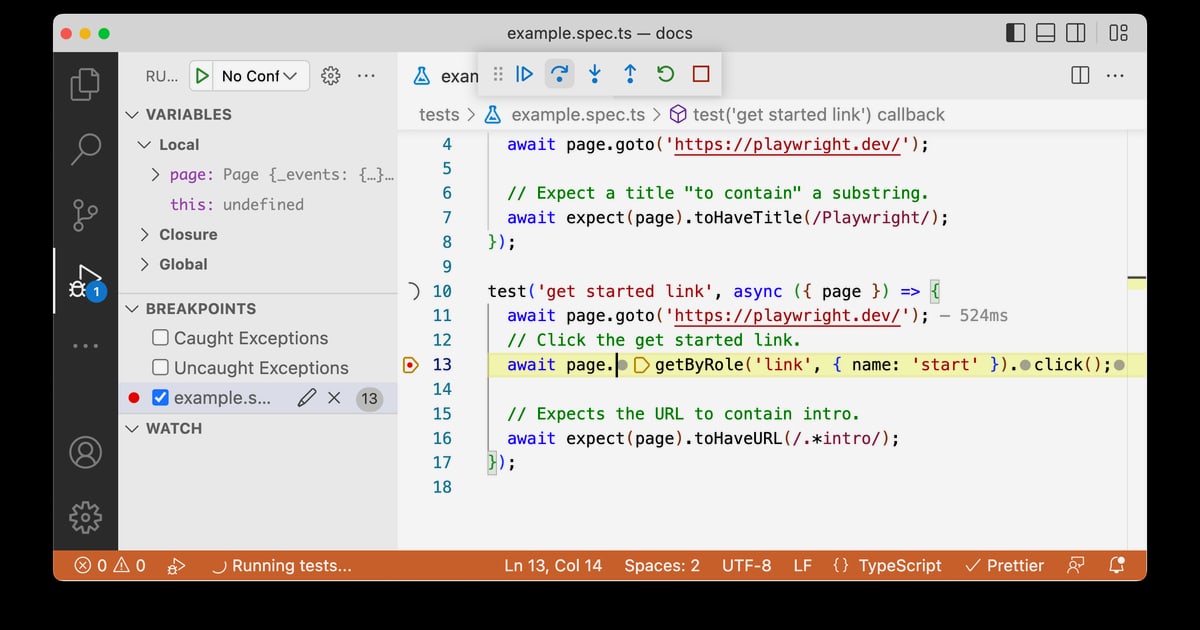
Playwright setup takes about five minutes: install the package, download browser binaries, and run the generated example test. The tricky part comes later — configuring projects, sharing authentication state, and keeping the same setup working on a CI machine. This guide walks through the whole path, from a blank folder to a reliable test pipeline.

Playwright Setup: Install, Configure, and Run Tests - What Playwright Setup Actually Installs.
When you run the initializer, Playwright does more than add a dependency. It scaffolds a working test project and downloads browser binaries for Chromium, Firefox, and WebKit.
A typical scaffold looks like this:
playwright.config.ts        # central configuration
package.json
package-lock.json           # or yarn.lock / pnpm-lock.yaml
tests/
  example.spec.ts           # minimal starter test
The playwright.config.ts file is where browsers, timeouts, retries, projects, and reporters are defined. The tests/ folder holds your specs. Browser binaries are stored outside your project so they can be reused across repositories.
Before you start, confirm your environment:
Pick the package manager you already use. The command below either initializes a new project or adds Playwright to an existing one.
npm init playwright@latest
# or
yarn create playwright
# or
pnpm create playwright
During the interactive prompt you choose:
tests by default, or e2e if a tests folder already exists.You can re-run the initializer later; it will not overwrite existing tests.
If you prefer working inside an editor, the VS Code extension can create and run tests without touching the terminal. For agent-driven workflows, a separate CLI exists that installs skills for tools like Claude Code and GitHub Copilot:
npm install -g @playwright/cli@latest
playwright-cli install
playwright-cli install --skills
This creates a .playwright directory, adds it to .gitignore, and downloads the configured browser if it is missing.
Playwright Setup: Install, Configure, and Run Tests - Step 2: Run the Example Test.
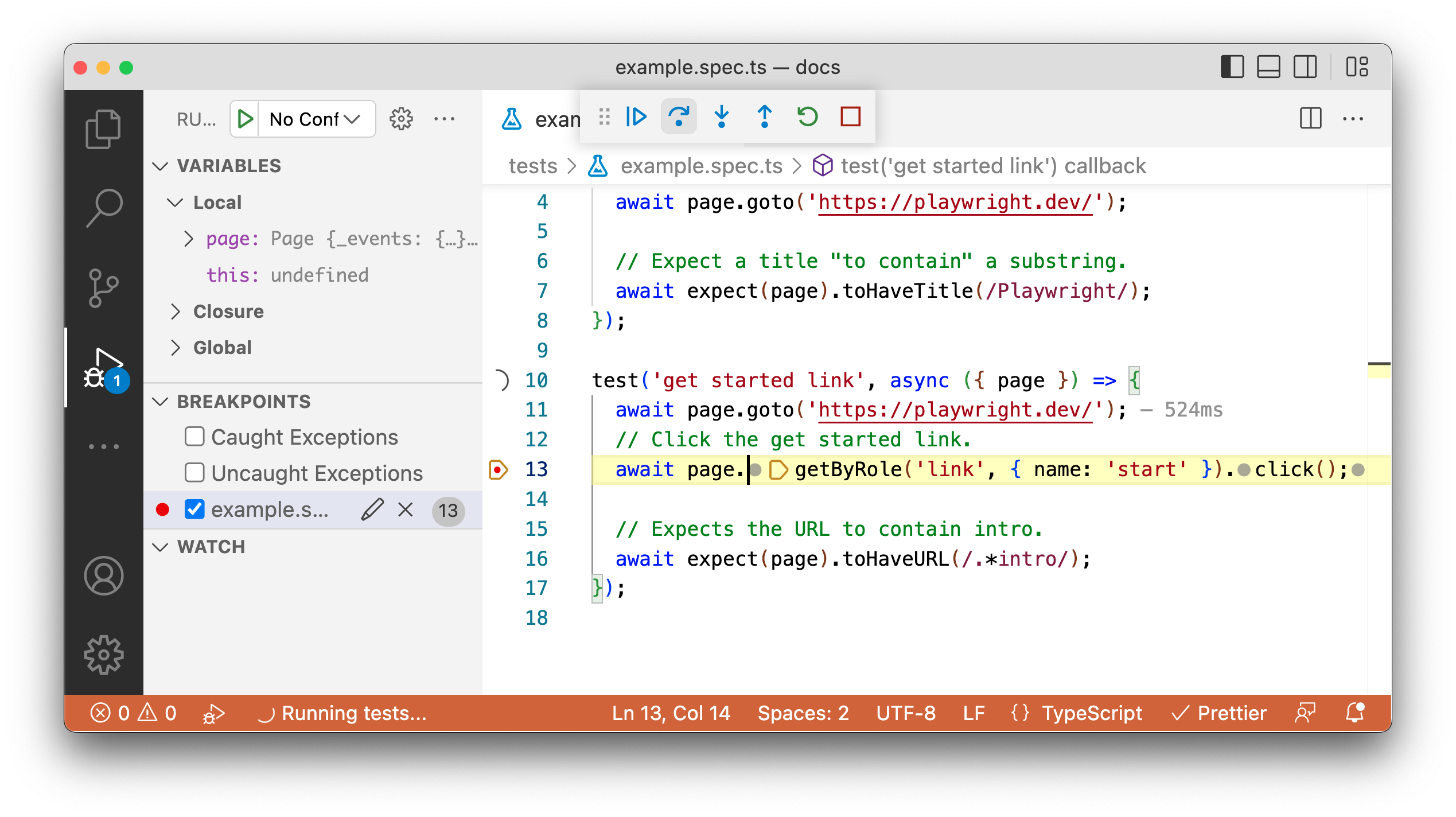
By default, tests run headless and in parallel across Chromium, Firefox, and WebKit.
npx playwright test
Useful variations:
npx playwright test --headed                 # see the browser window
npx playwright test --project=chromium       # run one browser
npx playwright test tests/example.spec.ts    # run one file
npx playwright test --ui                     # open UI mode
UI Mode gives you watch mode, a live step view, and time-travel debugging. It is the fastest way to understand why a locator failed.
After a run, open the report:
npx playwright show-report
The dashboard lets you filter by browser, passed, failed, skipped, and flaky. Clicking a test shows errors, attachments, and each step. The report auto-opens only when failures occur.
Playwright Setup: Install, Configure, and Run Tests - Step 3: Configure Projects and Browsers.
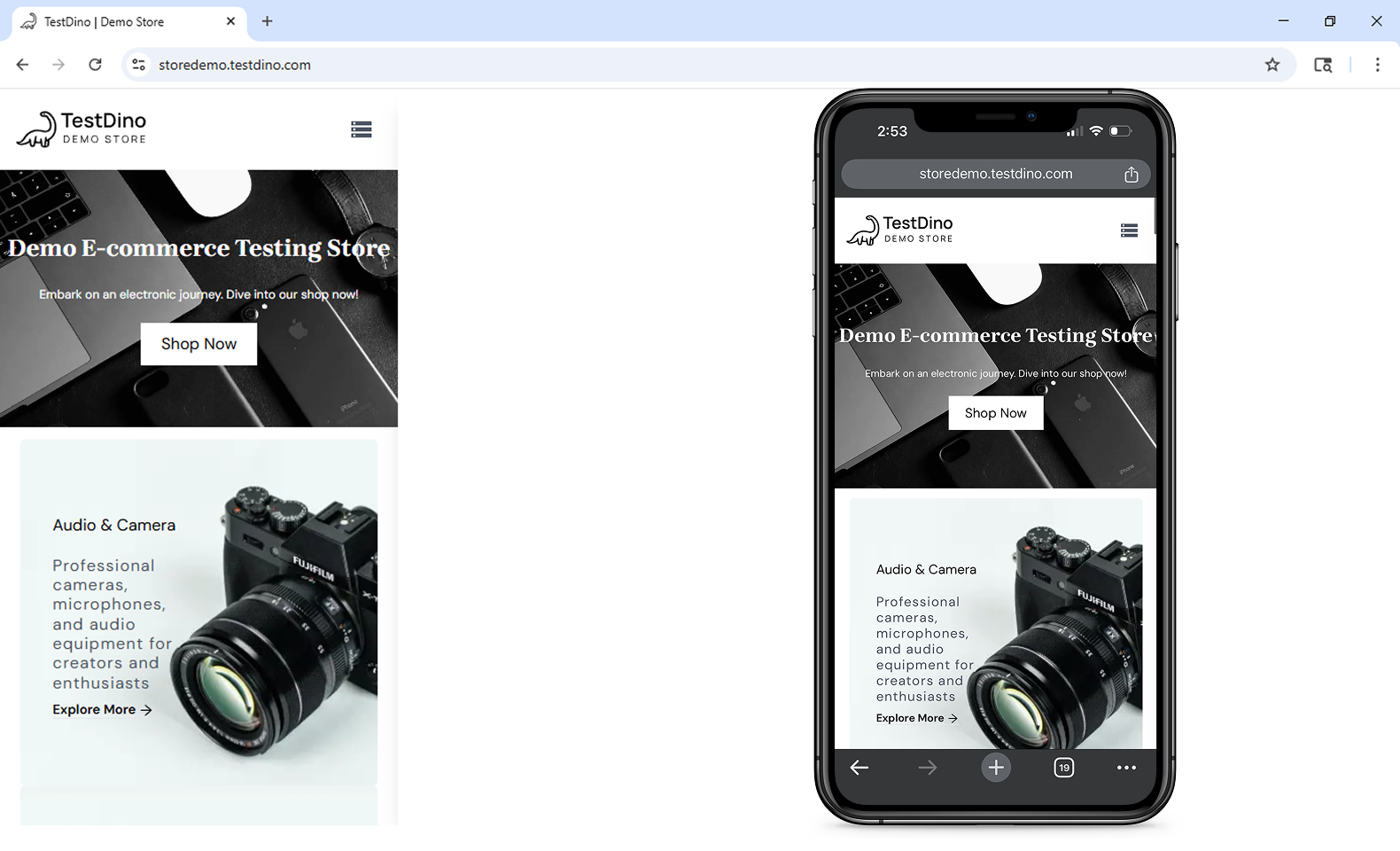
A project is a named configuration that targets a specific browser or device. Most teams start with three desktop projects and add mobile emulation when needed.
import { defineConfig, devices } from '@playwright/test';

export default defineConfig({
  testDir: './tests',
  retries: process.env.CI ? 2 : 0,
  use: {
    baseURL: 'http://localhost:3000',
  },
  projects: [
    { name: 'chromium', use: { ...devices['Desktop Chrome'] } },
    { name: 'firefox', use: { ...devices['Desktop Firefox'] } },
    { name: 'webkit', use: { ...devices['Desktop Safari'] } },
  ],
});
Retries matter in CI: a single flaky network call should not fail the build. Keep retries at zero locally so you notice real instability.
Most suites need something to happen once before all tests — seeding a database, logging in, or generating a token. Playwright offers two approaches, and they are not equal.
Define a setup project and make other projects depend on it. This integrates with the test runner, so traces are recorded and fixtures work.
import { defineConfig, devices } from '@playwright/test';

export default defineConfig({
  testDir: './tests',
  projects: [
    {
      name: 'setup db',
      testMatch: /global\.setup\.ts/,
      teardown: 'cleanup db',
    },
    {
      name: 'cleanup db',
      testMatch: /global\.teardown\.ts/,
    },
    {
      name: 'chromium with db',
      use: { ...devices['Desktop Chrome'] },
      dependencies: ['setup db'],
    },
  ],
});
Setup and teardown files are regular tests:
// tests/global.setup.ts
import { test as setup } from '@playwright/test';

setup('create new database', async () => {
  console.log('creating new database...');
});
The legacy option runs a single exported function before all tests. It works, but it misses HTML report visibility, trace recording, and fixture support.
import { defineConfig } from '@playwright/test';

export default defineConfig({
  globalSetup: require.resolve('./global-setup'),
  globalTeardown: require.resolve('./global-teardown'),
  use: {
    baseURL: 'http://localhost:3000/',
    storageState: 'state.json',
  },
});
A common pattern is authenticating once and saving the session:
import { chromium, type FullConfig } from '@playwright/test';

async function globalSetup(config: FullConfig) {
  const { baseURL, storageState } = config.projects[0].use;
  const browser = await chromium.launch();
  const page = await browser.newPage();
  await page.goto(baseURL!);
  await page.getByLabel('User Name').fill('user');
  await page.getByLabel('Password').fill('password');
  await page.getByText('Sign in').click();
  await page.context().storageState({ path: storageState as string });
  await browser.close();
}

export default globalSetup;
Tests then start already authenticated because storageState is loaded from state.json.
If you need traces from a failing global setup, wrap the body in
try...catchand stop tracing before rethrowing the error.
Playwright versions are tied to specific browser builds. Update both together:
npm install -D @playwright/test@latest
npx playwright install --with-deps
Check the installed version with npx playwright --version. On Linux, --with-deps installs the system libraries browsers need — skipping it is the most common cause of CI failures.
| Symptom | Likely Cause | Fix |
|---|---|---|
Executable doesn't exist |
Browser binaries missing or version mismatch | Run npx playwright install |
| Tests pass locally, fail in CI | Missing system dependencies | Use npx playwright install --with-deps |
| Global setup not shown in report | Using globalSetup instead of project dependencies |
Migrate to a setup project |
| Flaky tests on shared accounts | Session state reused across parallel workers | Use separate storage states per worker |
--no-deps skips setup unexpectedly |
Dependency chain ignored | Remove --no-deps or run setup explicitly |
Playwright is excellent at driving a browser, but it does not manage identity. If your tests or scrapers need to operate many accounts — marketplace seller logins, ad accounts, social profiles — each session needs an isolated fingerprint and its own proxy. That is the layer an anti-detect browser provides.
AdsPower creates isolated browser profiles with unique fingerprints across Canvas, WebGL, network, and user agent parameters, and supports proxy configuration per profile. Teams running multi-account workflows often pair it with Playwright so that each automation run starts from a clean, consistent identity rather than a shared browser state. For marketplace-specific patterns, see the walkthrough on using AdsPower with Amazon Seller Central, and for affiliate workflows, the MaxBounty multi-account guide.
This is not a replacement for Playwright setup — it is a complement. Playwright handles navigation, assertions, and reporting; the profile layer handles the account context underneath.
Installation and the first passing test usually take under ten minutes on a supported OS. The initializer downloads browser binaries, which is the slowest step on a fresh machine.
Usually no. npm init playwright@latest downloads them by default. You only need npx playwright install manually after upgrading Playwright or when setting up a machine without the initializer.
Project dependencies run as a normal project, so they appear in the HTML report, record traces, and support fixtures. globalSetup is a single function that runs before everything and lacks those features. Playwright documentation recommends project dependencies.
Yes, but CI machines usually lack a display server. Use a virtual display such as Xvfb, or keep tests headless and rely on traces and videos for debugging.
Use npx playwright test --project=chromium. This skips the other projects and shortens feedback loops significantly.
Yes. Playwright includes native mobile emulation for Chrome on Android and Mobile Safari, configured through device presets in your projects.
A solid Playwright setup is three things: a correct install, a config that matches your CI environment, and a global setup strategy that does not fight the test runner. Start with the initializer, run the example test, then add projects and a setup project as your suite grows. When your automation needs to operate multiple accounts rather than a single user session, layer in an anti-detect browser so each run has its own clean identity — and keep Playwright focused on what it does best: driving the browser and telling you what broke.


